Contact Us

If you still have questions or prefer to get help directly from an agent, please submit a request.
We’ll get back to you as soon as possible.

Please fill out the contact form below and we will reply as soon as possible.

  • Contact Us
English (UK)
AU English (AUS)
GB English (UK)
US English (US)
  • Home
  • Reading Eggs
  • 5 Simple Steps to Reading Eggs
  • 1. Start Here

2. Getting students started

Print login cards

Written by Elizabeth Carlson

Updated at June 4th, 2026

Contact Us

If you still have questions or prefer to get help directly from an agent, please submit a request.
We’ll get back to you as soon as possible.

Please fill out the contact form below and we will reply as soon as possible.

  • Rollover
  • Reading Eggs
    5 Simple Steps to Reading Eggs Reading Eggs & Eggspress Guides Fast Phonics Guides Reading Eggs FAQ's Reading Eggs Classroom Printable Videos Quick Tips What teachers are saying about Reading Eggs
  • Mathseeds
    Getting Started Classroom Strategies & Tips Classroom Printables FAQ's Printable Guides Teacher Console Student Console Videos What is Mathseeds? Webinars What teachers are saying about Mathseeds
  • 3 Essentials Dashboard
  • Writing Legends
    Student Console Teacher Console Writing Legends FAQ's Getting Started
+ More

Printing your students' Reading Eggs login cards is simple and easy.

Here's how: 

  1. Log in to your Reading Eggs Teacher Dashboard 
     
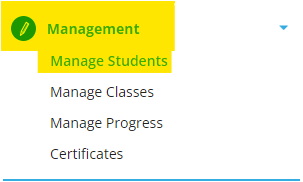
  2.  From the left-hand menu, select ‘Management’, then ‘Manage Pupils’

     
  3.  From your class roster, select all or some of the pupils for whom you'd like to print login cards
     
  4.  Once your students are selected, choose ‘Print logins’ from the top menu to print their login cards



Was this article helpful?

Yes
No
Give feedback about this article

Related Articles

  • 1. How to choose your reading programme in Reading Eggs: Fast Phonics, Reading Eggs and Reading Eggspress
  • 3. The right level
  • 4. Begin with lessons
  • 5. Assign content and review results

Copyright 2026 – 3P Learning.

Knowledge Base Software powered by Helpjuice

Expand